
Authentication Is Not Optional
In the early days of email, there was no reliable way to verify that an email actually came from who it claimed to come from. Anyone could send an email claiming to be from @apple.com or @yourbank.com. This was — and remains — the foundation of phishing.
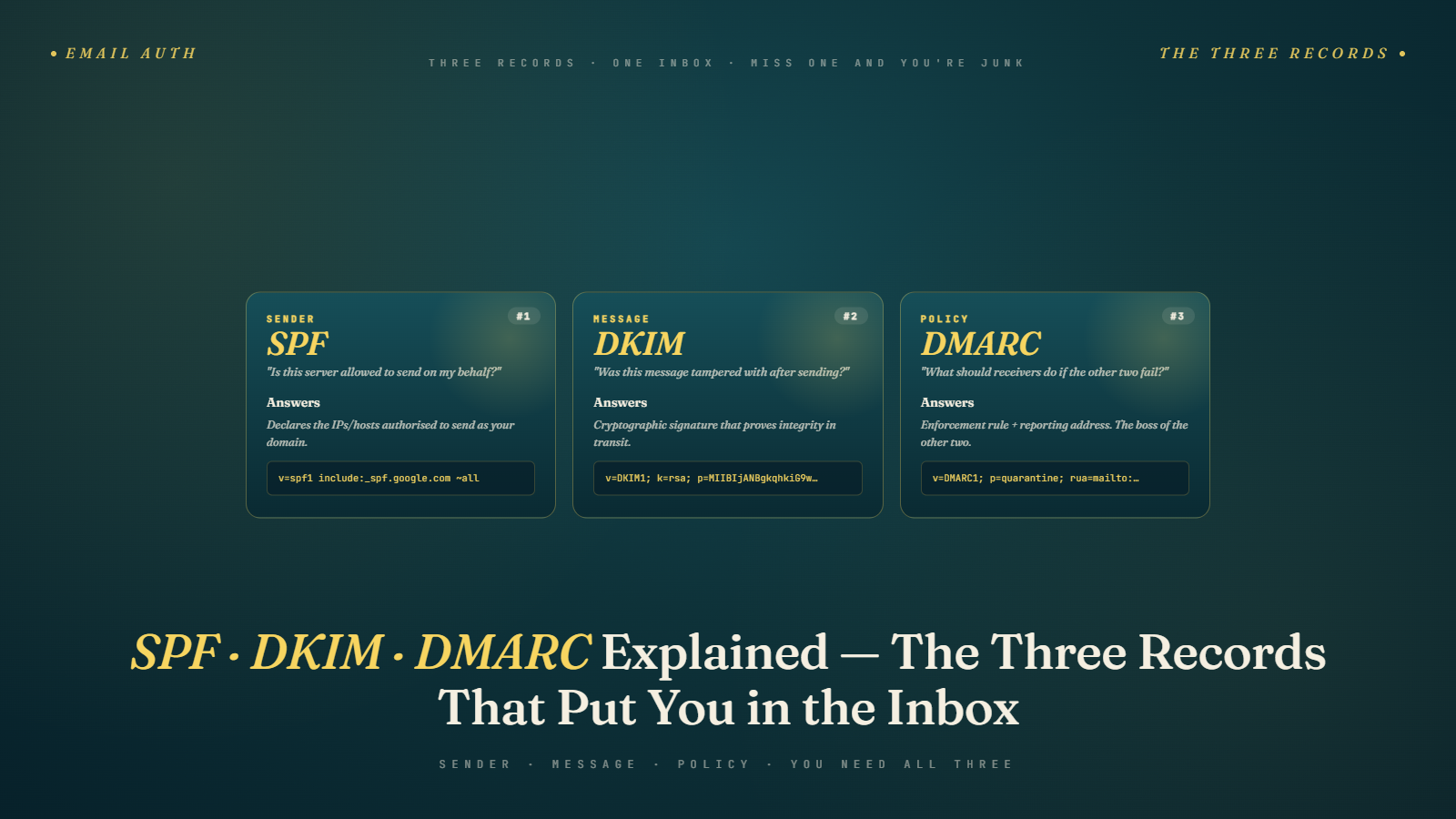
Email authentication standards were developed to solve this. SPF, DKIM, and DMARC are three complementary DNS-based systems that, working together, allow receiving mail servers to verify that an email claiming to come from your domain was actually authorized by you and hasn't been tampered with in transit.
For cold email practitioners, authentication serves two purposes:
Deliverability: Major email providers — especially Gmail and Outlook — filter unauthenticated emails more aggressively. Without proper authentication, you're making spam filters work against you from the start.
Compliance: Since 2024, Google and Yahoo require bulk senders (5,000+ emails/day to their users) to have SPF, DKIM, and DMARC configured. For anyone sending at scale, this is now a hard requirement, not a recommendation.
This article explains each record in plain English, how to set them up, and how to verify they're working. This is the technical follow-up to the domain setup guide and one of the foundational steps in any email deliverability setup.
Part 1: SPF (Sender Policy Framework)
What It Does
SPF tells receiving mail servers which IP addresses and mail servers are authorized to send email on behalf of your domain.
Think of it as a whitelist. When Gmail receives an email claiming to be from mike@tryacme.com, it looks up the SPF record for tryacme.com and checks: is the mail server that sent this email on the authorized list? If yes, SPF passes. If no, SPF fails — and the email is treated with significantly more suspicion.
What It Looks Like
An SPF record is a TXT record in your domain's DNS. It looks something like this:
v=spf1 include:_spf.google.com ~all
Breaking this down:
v=spf1— declares this as an SPF recordinclude:_spf.google.com— authorizes all mail servers used by Google (for Google Workspace inboxes)~all— "soft fail" for anything not on the authorized list (meaning: treat with suspicion but don't reject outright)
If you use multiple sending platforms — Google Workspace for the inbox and a cold email tool like Instantly that sends through its own infrastructure — your SPF record needs to include both:
v=spf1 include:_spf.google.com include:spf.instantlyai.com ~all
~all vs. -all
The ~all at the end is a "soft fail" — unauthorized senders are flagged but not automatically rejected.
The -all is a "hard fail" — unauthorized senders are rejected outright.
For most setups, ~all is the safer starting point because it gives you a margin for error if you add a new sending service and forget to update your SPF first. Once you're confident your SPF covers all legitimate sending sources, you can tighten it to -all.
How to Set It Up
- Log into your DNS provider (Cloudflare, GoDaddy, Namecheap, or wherever your domain's DNS is managed)
- Add a new TXT record for your root domain (
@or the domain itself) - The value is the SPF string as above — customize it for your specific email hosting provider
- Check your email hosting provider's documentation for their exact SPF include string
Google Workspace SPF: include:_spf.google.com
Microsoft 365 SPF: include:spf.protection.outlook.com
Zoho Mail SPF: include:zoho.com
Most cold email sending platforms (Instantly, Lemlist, etc.) send through your connected inbox — in which case you only need to include your email hosting provider's SPF, not the sending tool's. Check the tool's documentation to confirm.
Important: Only One SPF Record Per Domain
DNS only allows one SPF TXT record per domain. If you need to include multiple mail services, combine them into a single record. Two separate SPF records will cause authentication failures.
Part 2: DKIM (DomainKeys Identified Mail)
What It Does
DKIM adds a cryptographic digital signature to every email your domain sends. That signature is generated using a private key that only you have. When the receiving mail server gets your email, it looks up your public key (stored in your DNS) and uses it to verify the signature. If the signature is valid, it proves two things:
- The email genuinely came from your domain (or was authorized by it)
- The email hasn't been modified in transit — no one tampered with it between your server and the recipient's
Think of DKIM as a wax seal on a letter. It proves authenticity and integrity.
What It Looks Like
A DKIM record is also a TXT record in your DNS, but it's stored at a specific subdomain — not the root domain. It looks like:
DNS name: google._domainkey.tryacme.com
Value:
v=DKIM1; k=rsa; p=MIIBIjANBgkqhkiG9w0BAQEFAAOCAQ8AMIIBCgKCAQEA...
The long string of characters after p= is the public key. You don't write this yourself — it's generated by your email hosting provider and you copy it into your DNS.
How to Set It Up
For Google Workspace:
- Go to your Google Admin console (admin.google.com)
- Navigate to Apps → Google Workspace → Gmail → Authenticate email
- Select your domain and click "Generate new record"
- Google gives you a TXT record name and value — copy both
- Add this TXT record to your DNS provider
- Wait 24–48 hours for DNS propagation, then click "Start authentication" back in the Admin console
For Microsoft 365:
- In the Microsoft 365 admin center, go to Settings → Domains
- Select your domain and find DKIM settings
- Microsoft provides the CNAME records to add to your DNS
- Note: Microsoft 365 uses CNAME records for DKIM, not TXT records — this is normal
- Add the records to your DNS and enable DKIM in the admin center
For other providers: Check the provider's specific documentation. The process is similar — generate keys in the provider's admin panel, copy the DNS record values, add them to your DNS.
Multiple DKIM Selectors
If you use multiple email services that each require their own DKIM signature, you can have multiple DKIM records — they just use different selectors (the prefix before ._domainkey.). For example, google._domainkey.domain.com and sendgrid._domainkey.domain.com can coexist without conflict.
Part 3: DMARC (Domain-based Message Authentication, Reporting & Conformance)
What It Does
DMARC is the policy layer on top of SPF and DKIM. It tells receiving mail servers what to do when an email claims to be from your domain but fails SPF or DKIM verification. It also gives you a feedback mechanism — DMARC reports sent to an email address you specify — so you can monitor authentication results across all emails claiming to be from your domain.
DMARC has three policy options:
p=none— Monitor mode. Log failures and send reports, but don't take any action on failed emails. Good for initial setup and monitoring.p=quarantine— Emails that fail DMARC go to the spam/junk folder instead of the inbox.p=reject— Emails that fail DMARC are rejected entirely and never delivered.
What It Looks Like
A DMARC record is a TXT record on the _dmarc subdomain of your domain:
DNS name: _dmarc.tryacme.com
Value:
v=DMARC1; p=none; rua=mailto:dmarc-reports@tryacme.com
Breaking this down:
v=DMARC1— declares this as a DMARC recordp=none— monitor mode (no action on failures)rua=mailto:— the address where aggregate DMARC reports are sent
Starting Policy: p=none
For cold email, start with p=none. This satisfies Google and Yahoo's requirements (they require DMARC to be present, not necessarily enforced) while giving you time to monitor your authentication results before enforcing a stricter policy.
For the rua (report destination), you can use:
- A real inbox you'll actually monitor (
dmarc@yourdomain.com) - A dedicated DMARC reporting tool like Postmark's DMARC Digests, Dmarcly, or Valimail — these parse the raw XML reports into readable dashboards
Moving to p=quarantine or p=reject
Once you've confirmed your SPF and DKIM are working correctly and your legitimate sending sources are all passing authentication, you can tighten your DMARC policy. p=quarantine is a reasonable intermediate step. p=reject is the most secure configuration but requires confidence that all your legitimate email sources are properly authenticated.
For most cold email setups, p=none or p=quarantine is sufficient. The goal is to have DMARC present and configured, not necessarily to enforce the strictest policy.
Verifying Your Authentication Records
After setting up SPF, DKIM, and DMARC, always verify they're working correctly. DNS propagation typically takes a few hours to 48 hours — don't try to verify immediately after setting up.
Tools for verification:
- MXToolbox (mxtoolbox.com): The go-to tool for checking SPF (
/spf), DKIM (/dkim), and DMARC (/dmarc). Free, clear results, explains what's passing and what isn't. - Google Admin Toolbox (toolbox.googleapps.com): Great for domains hosted on Google Workspace. Provides detailed diagnostics.
- Mail-Tester (mail-tester.com): Send a test email to their address and get a full authentication check plus content spam score.
- DMARC Analyzer: Specifically for DMARC record validation and report analysis.
Test email method: Send an email from your new inbox to a Gmail account you control. Open the email, click the three-dot menu, and select "Show original." In the raw email headers, look for:
Authentication-Results— shows SPF, DKIM, and DMARC resultsdkim=passandspf=pass— both should appear if authentication is workingdmarc=pass— appears if DMARC is passing
If any of these show fail or neutral, the corresponding record needs to be corrected.
Common Authentication Setup Mistakes
Mistake 1: Multiple SPF Records
Having two separate TXT records that both start with v=spf1 for the same domain breaks SPF. The receiving server doesn't know which one to use. Combine everything into a single SPF record.
Mistake 2: Forgetting to Enable DKIM After Adding DNS Records
Adding the DKIM DNS record is only half the step. For Google Workspace and Microsoft 365, you also need to flip the "enable DKIM" switch in the admin console. DNS records alone don't activate it.
Mistake 3: Miscopying the DKIM Public Key
The DKIM public key is a long string of characters. A single character wrong in the copy-paste makes the entire key invalid. Double-check by using MXToolbox or the "Show original" email headers method after enabling.
Mistake 4: Setting Up Records on the Primary Domain But Not Secondary Domains
Every domain you send email from needs its own SPF, DKIM, and DMARC records. Authentication records on your primary domain do not extend to your secondary cold email domains. Configure each domain independently.
Mistake 5: Waiting for the Warm-Up to Finish Before Setting Up Authentication
Authentication should be the very first thing you configure on a new domain — before the warm-up starts, not after. Warm-up emails sent without authentication are wasted effort because they may not reach inboxes properly.
The Authentication Checklist
Before your first warm-up email from any new domain, confirm:
- SPF TXT record added to DNS — includes the correct mail server for your email hosting provider
- DKIM record added to DNS — correct name format (
selector._domainkey.domain.com) - DKIM enabled in your email hosting admin console (not just DNS — the switch must be on)
- DMARC TXT record added to
_dmarc.domain.com— at minimump=nonewith an rua address - MXToolbox SPF check returns green
- MXToolbox DKIM check returns green
- MXToolbox DMARC check returns green
- Test email sent and "Show original" headers confirm all three pass
When all seven boxes are checked, authentication is in order. Warm-up can begin.
BIMI: The Next Layer of Email Authentication
While SPF, DKIM, and DMARC are the foundational authentication standards, there's an emerging standard worth knowing about: BIMI (Brand Indicators for Message Identification).
BIMI allows senders who have implemented DMARC enforcement (p=quarantine or p=reject) to display their brand logo directly in the email client inbox, next to the sender name. Gmail and Apple Mail both support BIMI for verified senders.
Why it matters for cold email: In Gmail, a BIMI-verified sender displays their brand logo in the inbox — a small but real trust signal that differentiates them from unknown senders. For companies with recognizable brand marks, this can modestly improve open rates from brand recognition.
Requirements for BIMI:
- DMARC policy must be at
p=quarantineorp=reject(not justp=none) - A verified mark certificate (VMC) is required for the Gmail logo display — these are issued by specific certificate authorities and cost several hundred dollars per year
- The logo must be an SVG file meeting specific technical requirements
Is it worth it for cold email? For most cold email operations, especially those using secondary domains that aren't brand-recognizable, BIMI isn't a high priority. The benefit comes primarily when your sending domain is the same as your well-known primary brand. File this under "worth revisiting when you've nailed the basics" rather than "set up immediately."
Ongoing Authentication Maintenance
Authentication isn't configure-once-and-forget. Several situations require you to revisit and update your authentication records:
Adding a new sending service: Every time you add a new cold email platform, CRM, or marketing tool that sends email on behalf of your domain, you need to add that service to your SPF record and potentially set up a new DKIM selector.
Changing your email hosting provider: Migrating from Google Workspace to Microsoft 365 (or vice versa) means updating SPF and DKIM completely. The old records become invalid and the new provider's records need to be configured.
DKIM key rotation: Security best practice recommends rotating DKIM keys periodically (annually is a reasonable cadence). Most providers handle this automatically, but verify that old selectors are properly retired.
Domain ownership changes: If you're transferring a domain to a new registrar or DNS provider, verify that all authentication records transferred correctly. DNS migrations sometimes drop records.
Build a quarterly authentication review into your routine: use MXToolbox to spot-check all your active sending domains and confirm everything is still passing.
Authentication and Google/Yahoo's 2024 Bulk Sender Requirements
In early 2024, Google and Yahoo announced updated requirements for bulk email senders — anyone sending more than 5,000 emails per day to Gmail or Yahoo addresses. The requirements:
- Authenticate sending domains with SPF or DKIM (both is better)
- Have a DMARC policy present on the sending domain
- Enable one-click unsubscribe in commercial and marketing emails
- Stay below the 0.1% spam complaint threshold
For cold email practitioners, this isn't a dramatic change from best practice — serious practitioners were already doing all of this. But it formalized the requirements and made enforcement more systematic. Domains that don't meet these requirements are more likely to see their emails rejected or filtered, particularly when sending at volume to Gmail inboxes.
Setting up SPF, DKIM, and DMARC as described in this article fulfills the authentication requirements. The spam complaint threshold is managed through targeting quality and relevant outreach — which is why ICP definition and list building are foundational, not optional.
Next up: Avoiding Spam Filters in 2026 — how modern spam filter systems have evolved and what you need to do differently today compared to even two years ago.