
Why LinkedIn Is the Best B2B Prospecting Tool Available
There are hundreds of B2B databases out there. Apollo, ZoomInfo, Lusha, Cognism — we covered all of them in Best Data Sources for Cold Email Outreach. They're all useful in different contexts. But none of them comes close to LinkedIn for one simple reason: LinkedIn's data is self-reported and self-maintained.
When someone gets promoted, they update their LinkedIn. When they change jobs, they update their LinkedIn. When a company launches a new product or raises a round, they announce it on LinkedIn. No third-party database has that kind of real-time accuracy because no third-party database is where professionals go to manage their professional identity.
That's why LinkedIn should be a core part of your prospecting workflow — not as the only source, but as the verification layer and often the primary discovery tool for most B2B markets.
In this guide, we're going to cover how to use LinkedIn for prospecting in a structured, systematic way. We'll cover free LinkedIn, Sales Navigator, Boolean search, extracting contacts for your cold email list, and the best practices for turning LinkedIn research into effective outreach.
This builds directly on the prospect list building framework we covered earlier — LinkedIn is often the best tool for both building the company layer and finding the right contacts within those companies.
Free LinkedIn vs. Sales Navigator: What's the Actual Difference?
Let me be straight with you: if you're doing serious outbound prospecting, the free version of LinkedIn will frustrate you quickly. You'll hit search limits, you won't be able to filter by seniority or function, and you won't be able to save leads or accounts.
Here's a practical comparison:
Free LinkedIn:
- Basic search filters (keyword, location, industry, company, job title)
- Limited search results (typically truncated at 1,000 results)
- You can view profiles of 2nd and 3rd degree connections with some limitations
- No ability to reach out to people you're not connected to (without InMail)
- No saved searches or alerts
LinkedIn Sales Navigator (Core, ~$100/month per seat):
- Full access to all lead and account filters (function, seniority level, headcount, headcount growth, years in current role, recent job changes, and much more)
- Up to 2,500 results per search
- Saved searches with automatic email alerts when new people match
- Lead lists and account lists you can organize and track
- InMail credits (50/month on Core)
- "Spotlights" that highlight contacts who've changed jobs recently, posted on LinkedIn, or are alumni of a specific company
- TeamLink to see connections your colleagues have
For most outbound teams, Sales Navigator pays for itself many times over in time saved and quality improved. If you're serious about cold email, budget for it.
Step 1: Set Up Your LinkedIn Profile for Prospecting
Before you start searching, do a quick audit of your profile. When a prospect gets your cold email and Googles you (and they will), they'll often land on your LinkedIn. A weak or incomplete profile undermines the credibility of your outreach.
At minimum, make sure you have:
- A professional headshot (not a holiday photo, not a logo)
- A clear headline that describes what you do and who you help (not just your job title)
- A summary that explains your value proposition — what problems do you solve and for whom?
- Recent experience that's relevant and up to date
- A banner image that reinforces your company branding
You don't need to overdo this. You just need to look like a legitimate professional that someone could feel comfortable accepting a meeting with.
Step 2: Build Your Account List First
Just like in the general list-building process, LinkedIn prospecting works best when you start at the company level before drilling down to contacts.
In Sales Navigator, go to Account Search and apply your ICP filters:
- Industry — LinkedIn has an extensive taxonomy. Get specific: "Computer Software" is broad; "SaaS" isn't an option but you can use "Computer Software" + keyword filters to narrow down.
- Headcount — One of the most reliable ICP filters. If you want 50–500 employees, set it precisely.
- Headcount growth — This is underused. If you want companies actively scaling, filter for positive headcount growth. It's a strong proxy for "has budget and is hiring."
- Geography — Country, region, or even specific metro areas
- Revenue range — Available with some plan levels; not always accurate but useful as a filter
- Technologies used — Sales Navigator has some technographic data; for deeper tech-stack filtering, use BuiltWith separately
- Keywords — Company description or name keywords can narrow things significantly
Save your search. Sales Navigator will alert you when new accounts match your criteria, which means your prospecting list gets refreshed automatically.
Build an Account List in Sales Navigator and add the companies that match. This becomes your target account list — your source of truth for who you're targeting.
Step 3: Find the Right Contacts Within Your Target Accounts
Once you have your account list, switch to Lead Search and filter within those accounts:
- Seniority Level — This is one of the most powerful filters. Options include Entry, Senior, Manager, Director, VP, CXO, Owner, Partner. For most B2B outbound, you're targeting Director to VP level.
- Function — Sales, Marketing, Engineering, Finance, Operations, etc. Pick the function that matches your buyer persona.
- Title Keywords — Add specific keywords to catch titles that aren't perfectly categorized: "Head of Growth," "Revenue Operations," etc.
- Years in Current Role — Someone in a role for 1–2 years is often more likely to want to make an impact by adopting new tools. Someone in their first 6 months may still be figuring things out. This is a nuanced but useful filter.
- Changed Jobs Recently — New decision-makers are actively evaluating tools and processes. This "Spotlight" filter in Sales Navigator is one of its best features.
- Posted on LinkedIn in Last 30 Days — If someone is actively posting, they're more likely to be visible and engaged. This can help with personalization too — you can reference their content.
- Following Your Company — Already aware of you? Much warmer prospect.
Work through your account list and identify 1–3 contacts per company, depending on your strategy. For most cold email campaigns, I recommend one contact per company to start. If a campaign with one contact type isn't working, try a different title at the same company.
Step 4: Master Boolean Search
Boolean search is a technique that lets you combine keywords with logical operators to create more precise queries. LinkedIn supports it, and if you're not using it, you're leaving precision on the table.
The key operators:
AND — Both terms must appear. Example: "VP" AND "marketing" finds results that include both.
OR — Either term can appear. Example: "Head of Marketing" OR "VP Marketing" OR "CMO" casts a wider net across similar titles.
NOT — Excludes a term. Example: "VP Marketing" NOT "Assistant" removes false positives.
Quotation marks — Treats the phrase as an exact match. "Head of Marketing" finds that exact phrase, not pages that just mention "head" and "marketing" separately.
Parentheses — Groups operators. Example: ("VP" OR "Head") AND ("Marketing" OR "Growth") NOT "intern" is a clean way to find senior marketing and growth people.
A practical example for finding your buyer at mid-market SaaS companies:
("Head of Sales" OR "VP of Sales" OR "VP Sales" OR "Director of Sales") NOT ("intern" OR "assistant" OR "coordinator")
This will be far more precise than just typing "VP Sales" and getting everyone from interns to C-suite who has "sales" in their title somewhere.
Step 5: Extract Data for Your Cold Email List
Here's where LinkedIn gets tricky. LinkedIn doesn't make it easy to export contact data in bulk — and for good reason from their perspective. The data is valuable.
Option 1: Manual entry (smallest scale) For your highest-value target accounts — say, 20–30 companies where the deal size justifies it — manually research and record the contacts. You'll catch nuances that automated tools miss.
Option 2: LinkedIn's built-in export (connections only) You can export your first-degree connections from LinkedIn settings. This is useful if you've built a large network in your target market and want to mine it for prospects.
Option 3: Third-party scraping tools Tools like Evaboot, Phantombuster, and Wiza connect to LinkedIn (and Sales Navigator) and help you extract lead lists in bulk. These technically violate LinkedIn's ToS — use them at your own risk, and be conservative in how much you extract at once.
Option 4: Use your database tool to match LinkedIn profiles Apollo, ZoomInfo, and Lusha all have Chrome extensions that work on LinkedIn. When you're on a LinkedIn profile, the extension shows you the contact's email and direct dial if available. This is a safe, manual way to bridge LinkedIn and your CRM without scraping.
After extracting contacts, the first thing to do — before anything else — is verify the email addresses. Email addresses found through third-party tools or scrapers have meaningful error rates. Run everything through a verification tool before it goes anywhere near your sending platform. We cover this fully in How to Verify Emails and Reduce Bounce Rate.
Step 6: Use LinkedIn for Personalization Research
Even after you've found your contacts and extracted their details, LinkedIn still has value — for personalization.
Before you write or customize an email to a specific prospect, spend 3–5 minutes on their LinkedIn profile. Look for:
Recent posts and comments: Did they post about a challenge they're facing? Comment on an article about a topic relevant to your offer? Reference this naturally in your opening line.
Job history: How long have they been in this role? Have they done similar work before? This can inform how you frame your value proposition.
Shared connections: Do you have mutual connections? A warm intro from a shared contact is far more powerful than a cold email. Even a name drop — "I noticed we're both connected to [Name]" — can create a small familiarity bridge.
Accomplishments and content: Did they speak at a conference? Publish an article? Launch a product? These are easy, genuine personalization hooks.
Company news on their profile: Did their company recently make a big announcement? Were they promoted? Any of these are opening-line opportunities.
This kind of research-based personalization is what separates a 2% reply rate from a 15% reply rate. We go deep on this in Personalization Data: What to Collect and Why.
Step 7: LinkedIn Outreach vs. Cold Email — Know When to Use Which
Not everything needs to be a cold email. LinkedIn also has its own outreach mechanisms — connection requests and InMail — and sometimes they're the better first touch.
When LinkedIn outreach makes sense:
- The prospect is highly active on LinkedIn (lots of posts, comments, engagement)
- Their email is hard to find and you're not sure if cold email will reach them
- You want to warm up a prospect before cold emailing them
- Your message is conversational and personal enough to fit the LinkedIn context
When cold email makes more sense:
- You're scaling outreach to more than a handful of people per day
- You have a strong verified email address
- Your sequence benefits from structured follow-up (harder to do on LinkedIn)
- The prospect is less active on LinkedIn
Many top-performing outbound teams do both. They use LinkedIn to connect and warm up key prospects, then move the conversation to email for the structured multi-touch sequence.
Common LinkedIn Prospecting Mistakes
Mistake 1: Not Using Sales Navigator and Getting Frustrated with Free LinkedIn
Free LinkedIn is genuinely limiting for prospecting. If you're doing serious outbound and not using Sales Navigator, you're handicapping yourself. It's worth the investment.
Mistake 2: Sending LinkedIn Connection Requests with No Context
Sending connection requests with no message — or with a generic "I'd like to add you to my network" — gets ignored or declined. If you're going to send a connection request as part of your outreach, personalize it. Reference something specific.
Mistake 3: Pitching Immediately After Connecting
One of the fastest ways to damage your LinkedIn reputation and get reported for spam is connecting and then immediately sending a pitch. Build at least one interaction before asking for anything.
Mistake 4: Using LinkedIn Data Without Verifying Emails
LinkedIn doesn't give you email addresses. Whatever you get through third-party tools that match LinkedIn profiles should be verified before use. Treat it the same way you'd treat data from any other source — with healthy skepticism until verified.
Mistake 5: Not Saving Searches
If you've built a good Sales Navigator search that finds ICP-matching prospects, save it. Let it run on autopilot. New matches get added to your list automatically over time without you having to redo the work.
Mistake 6: Ignoring the Timing Signals
Sales Navigator's Spotlights — job changes, recently posted, company growth — are some of the most valuable features in the product. Don't just search for titles. Layer in these timing signals to find prospects who are in a receptive moment.
Putting LinkedIn Into Your Prospecting Workflow
Here's how LinkedIn fits into the broader list-building workflow:
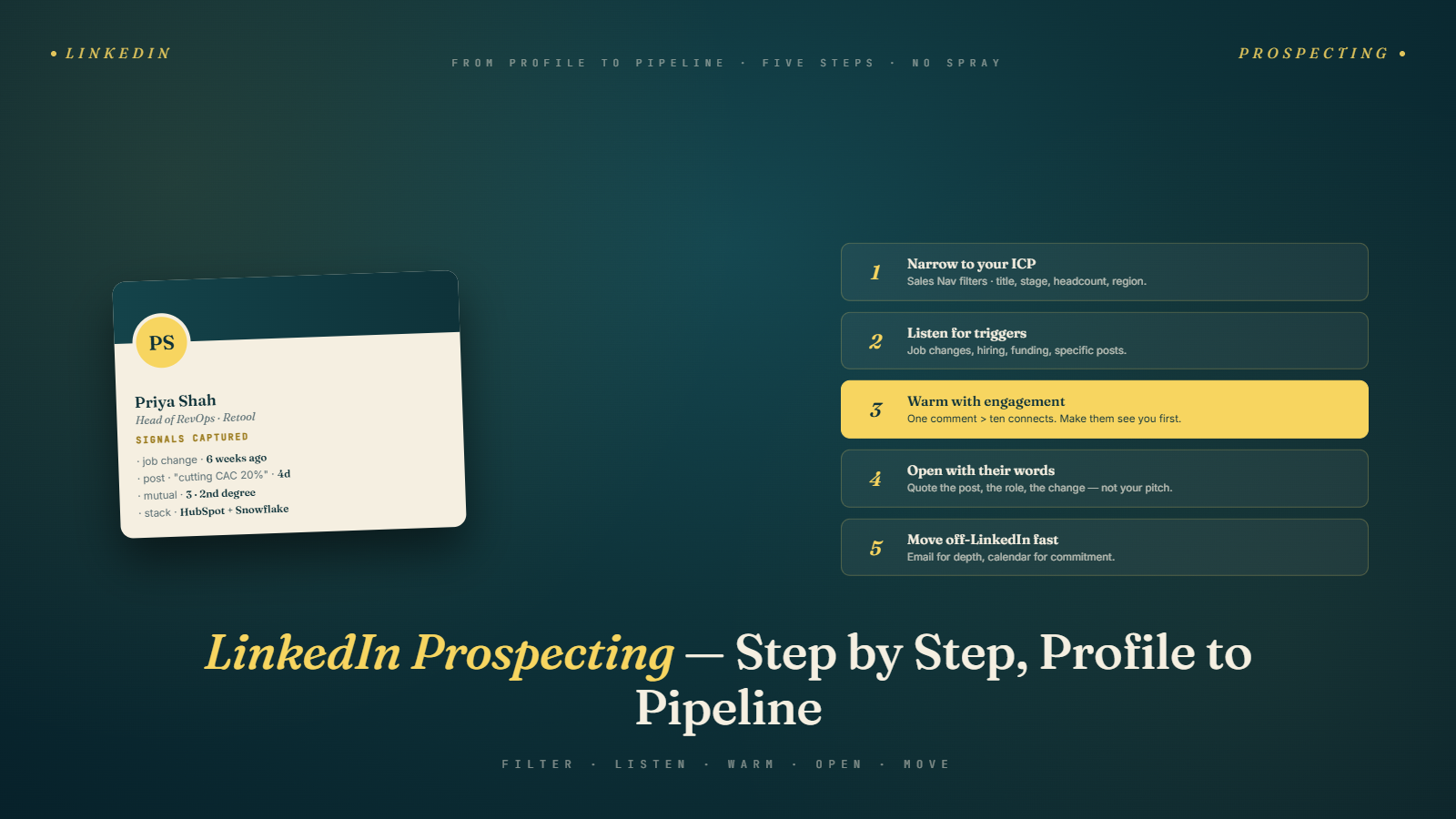
- Use Sales Navigator Account Search to build your target account list
- Use Sales Navigator Lead Search within those accounts to find the right contacts
- Use Boolean search to refine your title and keyword targeting
- Extract contact data using your preferred method (manual, extension, or tool)
- Verify emails before any outreach
- Research key prospects on LinkedIn for personalization hooks
- Layer LinkedIn outreach into your sequence as a warm-up or parallel touch
Done systematically, this process gives you a steady pipeline of well-matched, freshly-researched prospects — which is exactly what good cold email requires.
The next step in this series focuses on something many people find frustrating: actually finding valid email addresses. Whether you're starting with LinkedIn data or any other source, you need to get the right email for the right person. That's what we tackle next.
Next up: Email Finding Techniques (Manual vs Tools) — every method for finding a prospect's email address, from manual research tricks to the best software tools available.